Rule Content Packaging
Overview
Rule Content Packaging is an administrative feature in Intelligent Decision Management (IDM) that enables business users and implementation teams to migrate configured rules across environments such as:
DEV -> QAQA -> PROD- IDM applications deployed in different customer accounts
This feature exports and imports rule-related configurations in JSON format while preserving:
- Application hierarchy
- Rule structure
- Global Field Catalogue configuration
- Rule data
The functionality supports:
- Full application migration
- Partial migration of selected rules
- Migration with or without rule records or blocks
- Validation before import
- Duplicate data handling
Access control and module navigation
Only users with the CW_IDM_ADMIN role can access this module.
If the user does not have the required role:
- The menu is not visible
Users can access the module from:
Admin Console -> Rule Content Packaging
Supported rule hierarchy
The export and import process preserves the complete application hierarchy.
Application
   └── Rule Maintenance Set (RMS)
         └── Rule Set (RS)
               └── Decision Tables (DT - With and Without Expression)
               └── Text Rules (TR - Simple and Advanced)
   └── Rule Simulations
Export rule content
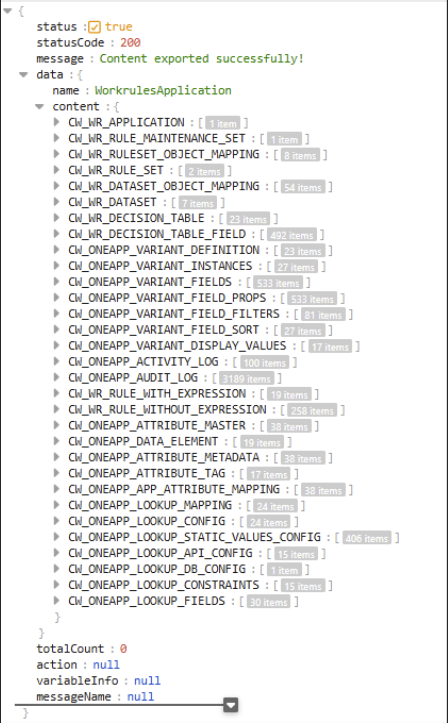
The export functionality allows users to generate a portable JSON file containing:
- Application hierarchy
- Rule structure
- Global Field Catalogue configuration
- Rule data
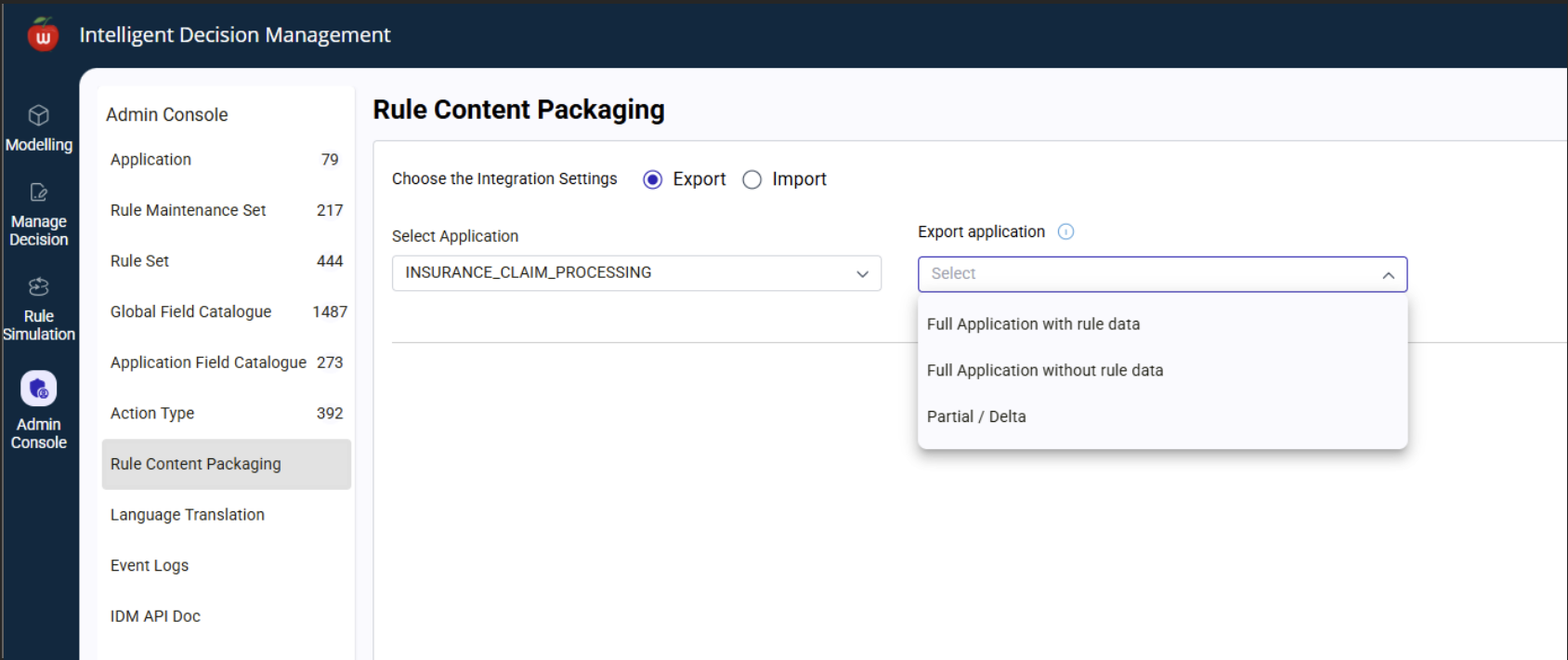
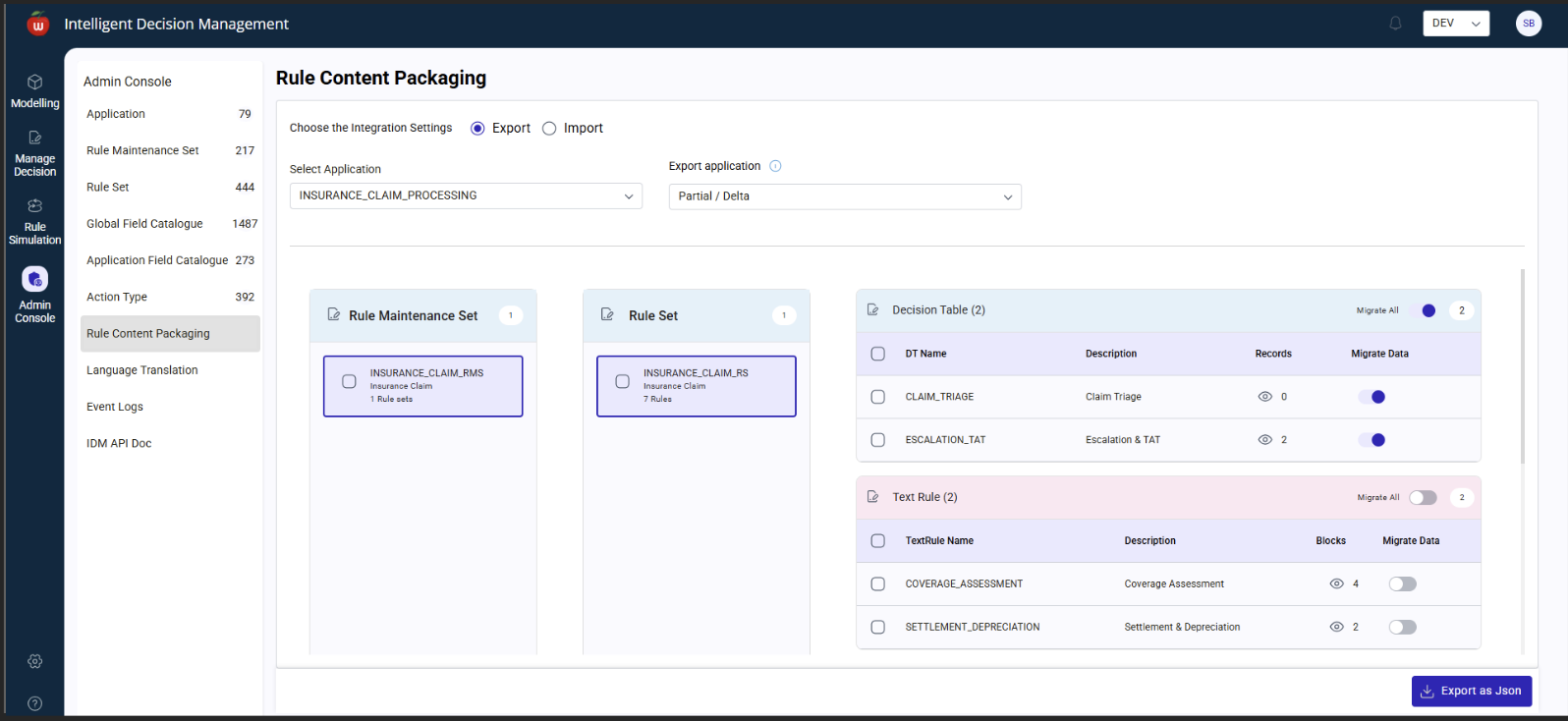
The user selects:
Exportoption- Application
- Export type
Then clicks Export as JSON to download the generated package.
Export types
Full application with rule data
Use this option when:
- Migrating a complete application
- Performing initial QA, UAT, or PROD setup
- Replicating one environment into another
This exports:
- Complete application hierarchy: Application, RMS, RS
- Decision Tables with rule records
- Text Rules with block data
- Saved rule simulations
Full application without rule data
Use this option when:
- Only rule structure and configuration should be migrated
- Data should be configured separately after migration
This exports:
- Complete application hierarchy: Application, RMS, RS
- GFC and rule metadata or configuration
- No Decision Table rule records
- No Text Rule blocks
- No rule simulations
Partial or delta export
Use this option when:
- Only changed rules need migration
- Bug fixes or enhancements are being deployed
- Incremental releases are required
This allows users to export:
- Specific Decision Tables
- Specific Text Rules
Users can choose to:
- Include complete rule records or blocks
- Include selected rule records or blocks
- Exclude rule records or blocks
Import rule content
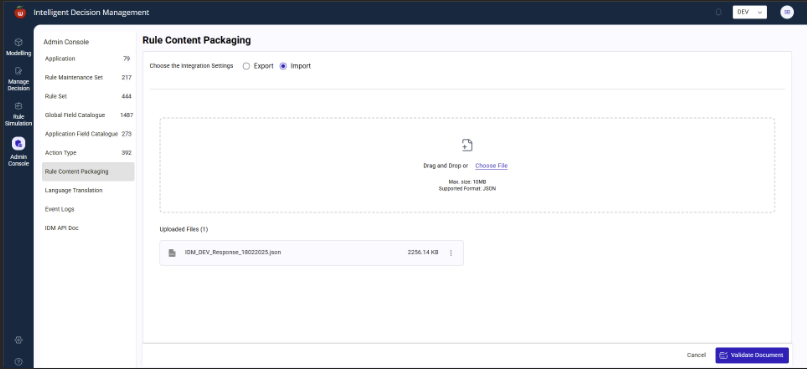
The import functionality allows users to upload exported JSON packages into another environment.
Example flow:
- Export from
DEV - Import into
QA
The user selects:
Importoption- The exported JSON file
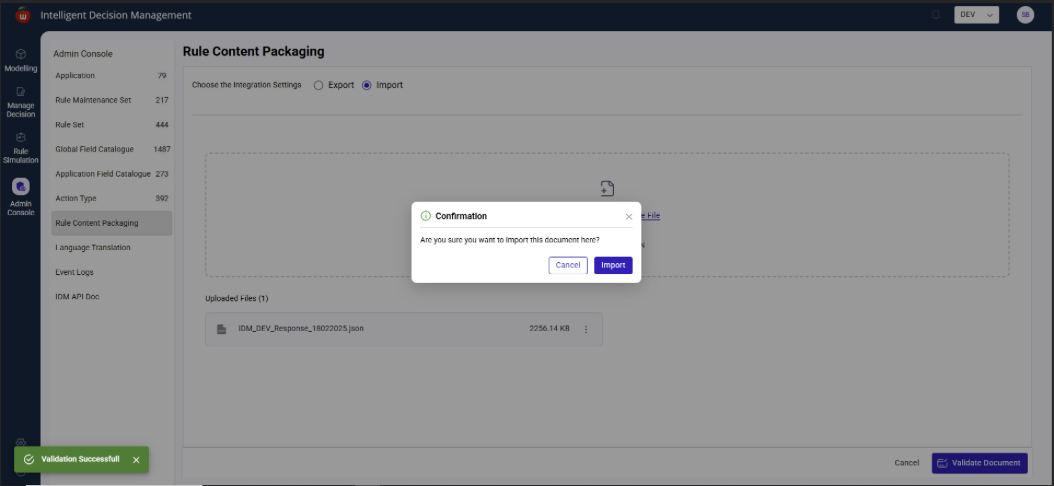
Then clicks Validate Document.
Import validation process
After the user uploads the document and clicks Validate Document, the system performs the following validations.
File validation
- Empty file
- Invalid JSON
- Corrupted structure
Schema validation
- Missing mandatory fields
- Invalid hierarchy
- Invalid references
Business validation
- Duplicate records
- Existing application and rule ID conflicts
- Invalid rule dependencies
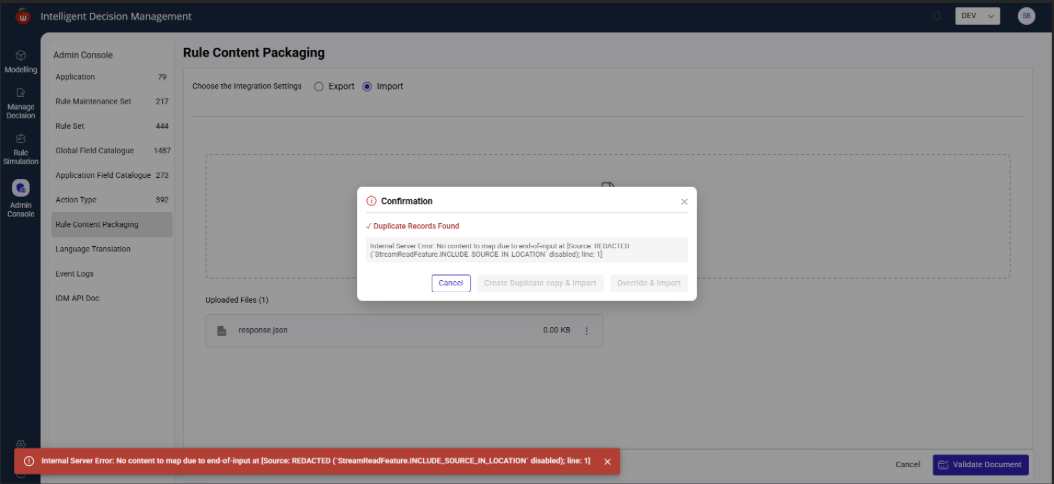
Duplicate handling
If duplicate records exist, the system shows a confirmation popup with the following options:
Create Duplicate Copy & Import: Generates new IDs for each mapping and creates duplicate copies of the application and rule dataOverride & Import: Overrides the existing application data being importedCancel
Import error handling
If errors occur while importing rule content, the system displays:
- Import success messages
- Failure messages
- Validation summary
Benefits of rule content packaging
- Maintains environment consistency by keeping
DEV,QA,UAT, andPRODaligned - Supports controlled migration through selective deployment
- Reduces manual recreation of rules and accelerates releases
Functional video
API-based Rules Migration
Rules can also be migrated between environments directly using REST APIs via Postman, without using the Admin Console UI.
The same steps apply for migration from QA to PROD. Users should avoid modeling rules in QA or PROD environments to prevent conflicts between environments.
Export rules from source environment
Step 1: Connect to the IDM database console and retrieve the Application ID of the application to be migrated.
SELECT * FROM CW_WR_APPLICATION
Step 2: Retrieve the URL for the source IDM Java application.
Step 3: Configure the export API in Postman with the APPLICATION_ID in the request body.
- HTTP Method:
POST - Authorization: OAuth 2.0 (credentials from source environment)
- API URL:
{IDM_JAVA_DEPLOYED_URL}/rest/v1/content-packaging/export
Example URL:
https://cw-workrules-services-dev.cfapps.eu10-004.hana.ondemand.com/rest/v1/content-packaging/export
Request body:
{
  "name": "WorkrulesApplication",
  "constraints": {
    "APPLICATION_ID": ["49a965d1f0e7415faf5f07a2dd8f261a"]
  },
  "isConstraintOverrridingAllowed": false
}
Step 4: Execute the API and copy the "data": {...} object from the response payload.
Import rules to target environment
Step 1: Retrieve the URL for the destination IDM Java application.
Step 2: Configure the import API in Postman with the copied response payload in the request body.
- HTTP Method:
POST - Authorization: OAuth 2.0 (credentials from destination environment)
- API URL:
{IDM_JAVA_DEPLOYED_URL}/rest/v1/content-packaging/import
Example URL:
https://cw-workrules-services-qa.cfapps.eu10-004.hana.ondemand.com/rest/v1/content-packaging/import
Request body:
{
  "name": "WorkrulesApplication",
  "content": {
    "CW_WR_APPLICATION": [
      {
        "APPLICATION_ID": "49a965d1f0e7415faf5f07a2dd8f261a",
        "CREATED_BY": "Shruti Bodhe",
        "CREATED_ON": 1683518780491,
        "DESCRIPTION": "Global",
        "LABEL": "Global",
        "NAME": "Global"
      }
    ]
  }
}
Step 3: Execute the API. Upon successful import, the application data is migrated to the destination IDM instance. Validate the Application Hierarchy (App > RMS > RS > Decision Tables / Text Rules) and verify the rules.
Configure authorization token in Postman
Step 1: Set the Authorization type to OAuth 2.0.
Step 2: Set the token URL and client credentials from the XSUAA instance associated with the deployed IDM Java application in the target environment.
Step 3: Click Get New Access Token and then Use Token.
SQL script for corrupted data
If expression decision table data is corrupted during migration, use the following SQL to manually transfer data from the source IDM database to the destination. Alternatively, generate insert scripts or use export/import with .CSV files from the database explorer.
SELECT
  CAST(BINTOSTR(CAST(BLOB_01 AS BINARY)) AS VARCHAR) AS BLOB_01,
  CAST(BINTOSTR(CAST(BLOB_02 AS BINARY)) AS VARCHAR) AS BLOB_02,
  CAST(BINTOSTR(CAST(BLOB_03 AS BINARY)) AS VARCHAR) AS BLOB_03,
  CAST(BINTOSTR(CAST(BLOB_04 AS BINARY)) AS VARCHAR) AS BLOB_04,
  CAST(BINTOSTR(CAST(BLOB_05 AS BINARY)) AS VARCHAR) AS BLOB_05,
  CAST(BINTOSTR(CAST(BLOB_06 AS BINARY)) AS VARCHAR) AS BLOB_06,
  CAST(BINTOSTR(CAST(BLOB_07 AS BINARY)) AS VARCHAR) AS BLOB_07,
  CAST(BINTOSTR(CAST(BLOB_08 AS BINARY)) AS VARCHAR) AS BLOB_08,
  CAST(BINTOSTR(CAST(BLOB_09 AS BINARY)) AS VARCHAR) AS BLOB_09,
  CAST(BINTOSTR(CAST(BLOB_10 AS BINARY)) AS VARCHAR) AS BLOB_10,
  CAST(BINTOSTR(CAST(BLOB_11 AS BINARY)) AS VARCHAR) AS BLOB_11,
  CAST(BINTOSTR(CAST(BLOB_12 AS BINARY)) AS VARCHAR) AS BLOB_12,
  CAST(BINTOSTR(CAST(BLOB_13 AS BINARY)) AS VARCHAR) AS BLOB_13,
  CAST(BINTOSTR(CAST(BLOB_14 AS BINARY)) AS VARCHAR) AS BLOB_14,
  CAST(BINTOSTR(CAST(BLOB_15 AS BINARY)) AS VARCHAR) AS BLOB_15,
  CAST(BINTOSTR(CAST(BLOB_16 AS BINARY)) AS VARCHAR) AS BLOB_16,
  CAST(BINTOSTR(CAST(BLOB_17 AS BINARY)) AS VARCHAR) AS BLOB_17,
  CAST(BINTOSTR(CAST(BLOB_18 AS BINARY)) AS VARCHAR) AS BLOB_18,
  CAST(BINTOSTR(CAST(BLOB_19 AS BINARY)) AS VARCHAR) AS BLOB_19,
  CAST(BINTOSTR(CAST(BLOB_20 AS BINARY)) AS VARCHAR) AS BLOB_20,
  CAST(BINTOSTR(CAST(BLOB_21 AS BINARY)) AS VARCHAR) AS BLOB_21,
  CAST(BINTOSTR(CAST(BLOB_22 AS BINARY)) AS VARCHAR) AS BLOB_22,
  CAST(BINTOSTR(CAST(BLOB_23 AS BINARY)) AS VARCHAR) AS BLOB_23,
  CAST(BINTOSTR(CAST(BLOB_24 AS BINARY)) AS VARCHAR) AS BLOB_24,
  CAST(BINTOSTR(CAST(BLOB_25 AS BINARY)) AS VARCHAR) AS BLOB_25,
  CAST(BINTOSTR(CAST(BLOB_26 AS BINARY)) AS VARCHAR) AS BLOB_26,
  CAST(BINTOSTR(CAST(BLOB_27 AS BINARY)) AS VARCHAR) AS BLOB_27,
  CAST(BINTOSTR(CAST(BLOB_28 AS BINARY)) AS VARCHAR) AS BLOB_28,
  CAST(BINTOSTR(CAST(BLOB_29 AS BINARY)) AS VARCHAR) AS BLOB_29,
  CAST(BINTOSTR(CAST(BLOB_30 AS BINARY)) AS VARCHAR) AS BLOB_30,
  CREATED_BY, CREATED_ON, DT_ID, DT_VERSION, RULE_ACTION, RULE_NAME,
  RULE_RECORD_ID, SEQUENCE_NO, STATUS, UPDATED_BY, UPDATED_ON,
  VALID_FROM, VALID_TO
FROM CW_WR_RULE_WITH_EXPRESSION
If the table structure for CW_WR_RULE_WITH_EXPRESSION varies, use the following query to dynamically generate the SQL:
SELECT CONCAT('CAST(BINTOSTR(CAST(', CONCAT(COLUMN_NAME, CONCAT(' AS BINARY)) AS VARCHAR) AS ', COLUMN_NAME)))
FROM TABLE_COLUMNS
WHERE TABLE_NAME = 'CW_WR_RULE_WITH_EXPRESSION'
  AND COLUMN_NAME LIKE 'BLOB%'
UNION
SELECT COLUMN_NAME
FROM TABLE_COLUMNS
WHERE TABLE_NAME = 'CW_WR_RULE_WITH_EXPRESSION'
  AND COLUMN_NAME NOT LIKE 'BLOB%'